
OUC Update Files and Data
GIS Contact info -
- Dawn Harris - GIS Supervisor - DHarris@ouc.com
- Michael Weiner - GIS Programmer - MWeiner@ouc.com
OUC updates are provided via an FTP connection. Using an FTP client (CoreFTP is preferred by OUC), below is an example of the connection profile. Reach out to 'Manderson, Teresa L.' <TManderson@ouc.com> with any FTP connection issues. 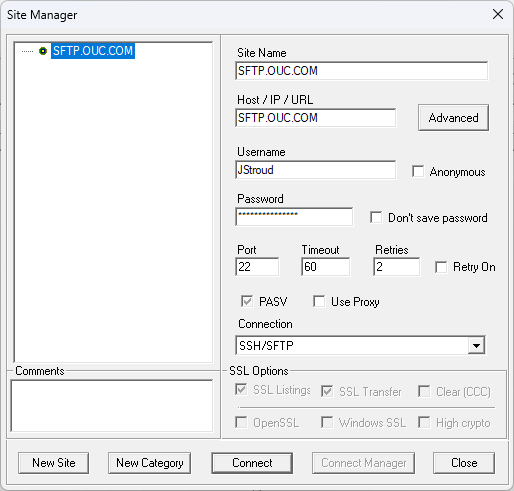
After downloading the OUC GIS files from the FTP, download the attached "OUC Conversion.zip", and unzip it. Take all of the .mdb files from the OUC and place them at the root of the OUC Conversion folder, and then double click "run_ouc_mdb_export.bat" file, as shown in the screenshot below. The listed files in the redbox are the only ones we are concerned with. 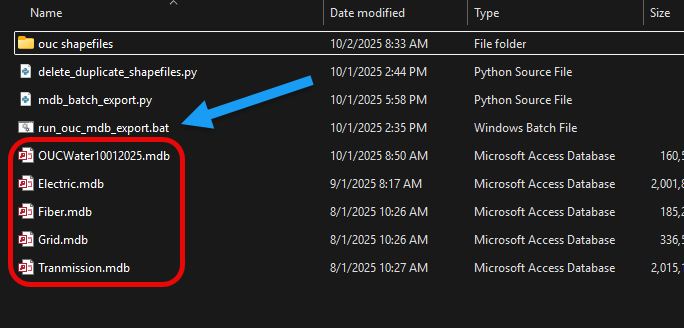
After running the "run_ouc_mdb_export.bat", you will see a command prompt run, and the mdb files will start to be converted to shp files and be placed in the "ouc shapefiles" folder. 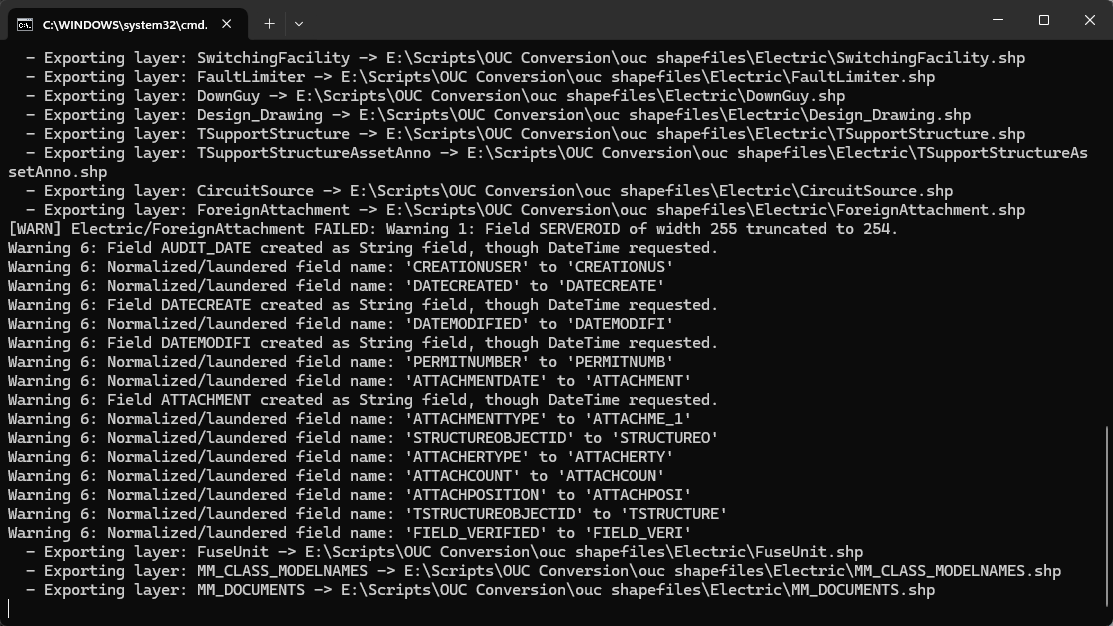
Once that is completed, download the attached "Import to PostGIS.zip" file, and then unzip it. Copy the "ouc shapefile" folder from the OUC Conversion folder and place it at the root of the Import to PostGIS folder, and then double click the "Run_Import.bat". 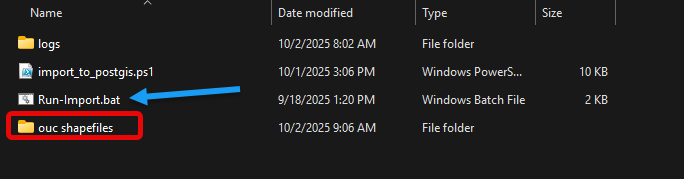
You will then be prompted for the target schema. In this case, type in "ouc" - 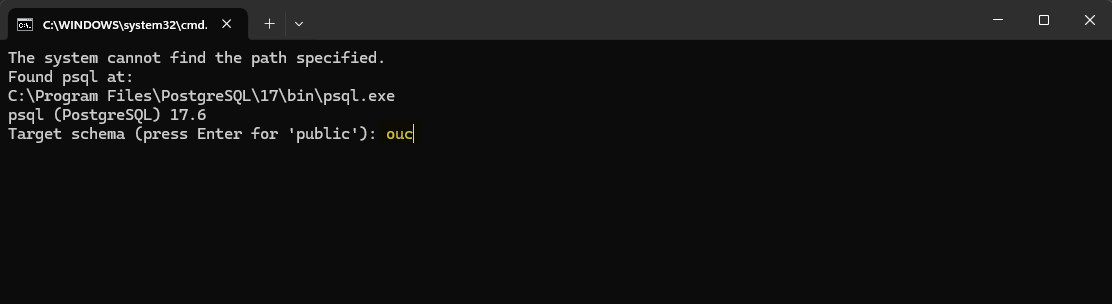
This will start the upload process to our GIS PostGIS server. This may take upwards of an hour. After this is complete, open the OUC project file in BP Maps repo, open up the Lixmap plugin and click apply. The map update is complete.